Expense tracker for small business: sort your bills with AI before month end
Bills in a drawer, photos on WhatsApp and a rush at month end. Set up one expense sheet, let AI read the bill photos, and give your accountant a clean pack every month.
On this page
- What you need
- Step 1: Set up your expense tracker: one sheet
- Step 2: Fix your categories once, with your accountant
- Step 3: Collect every bill in one place, every day
- Step 4: Let AI read the bills and write the rows
- Example: a sweet shop's Monday
- Step 5: Check and total once a week
- Step 6: Send your accountant one clean pack each month
- Mistakes to avoid
- Common questions
- Next step
Bills in a drawer, photos of bills in WhatsApp chats, and a rush at the end of every month when your accountant asks for them again. A simple expense tracker for small business use needs no new software: one sheet in Excel or Google Sheets, one place where every bill is collected, and an AI assistant that reads the bill photos and types the rows for you. You can set it up in about an hour; after that it takes a few minutes a day and ten minutes a week. This guide is general information, not tax or accounting advice: what counts for GST or income tax is your accountant's decision.
What you need
- A phone camera, and the habit of photographing every bill on the day it arrives.
- An AI assistant that can read photos. Free plans limit how many files you can upload in a day, so check yours.
- One sheet in Excel or Google Sheets.
- Ten minutes with your accountant, once, to agree the categories and what they need each month.
Step 1: Set up your expense tracker: one sheet
One sheet, one row per bill, the same columns every time. Copy these headings into the first row:
| Column | What goes in it | Example |
|---|---|---|
| Date | The date on the bill | 03-10-2026 |
| Supplier | Who you paid | Sharma Packaging |
| Bill number | As printed on the bill | SP/2425 |
| Category | One of your fixed categories (Step 2) | Packing material |
| Amount | The total on the bill | 4720 |
| GST shown | Yes or No: does the bill show GST? | Yes |
| Paid by | Cash, UPI, card or bank transfer | UPI |
| Photo | File name or link of the bill photo | 2026-10-03-sharma |
| Note | Anything unclear | Second page missing |
Keep the Amount column a plain number, without the rupee sign or commas, so that totals work later.
Step 2: Fix your categories once, with your accountant
AI is good at sorting, but it needs your list. Ask your accountant which groups they want and keep it to about eight to ten, for example: Stock and raw material, Packing material, Rent, Electricity and water, Salaries and wages, Transport and courier, Phone and internet, Repairs, Software and subscriptions, Other. Write the list in a second tab called "Categories". When something does not fit, use "Other" with a note; do not invent a new category every week.
Step 3: Collect every bill in one place, every day
Pick one place and tell everyone who spends money for the business: a WhatsApp chat with only yourself, or one folder on your phone or in Google Drive. The rule: a photo on the same day, the bill flat on a table, in good light, all four corners visible, nothing covering the total. Keep the paper bill too, in one box or envelope per month. The photo helps you find a bill; it does not replace what your accountant may ask for.
Cash spent without a bill, such as an auto fare or a payment to a loader, gets a one-line note in the same place: date, what, how much, who paid. Ask your accountant how they want such cash expenses recorded.
Step 4: Let AI read the bills and write the rows
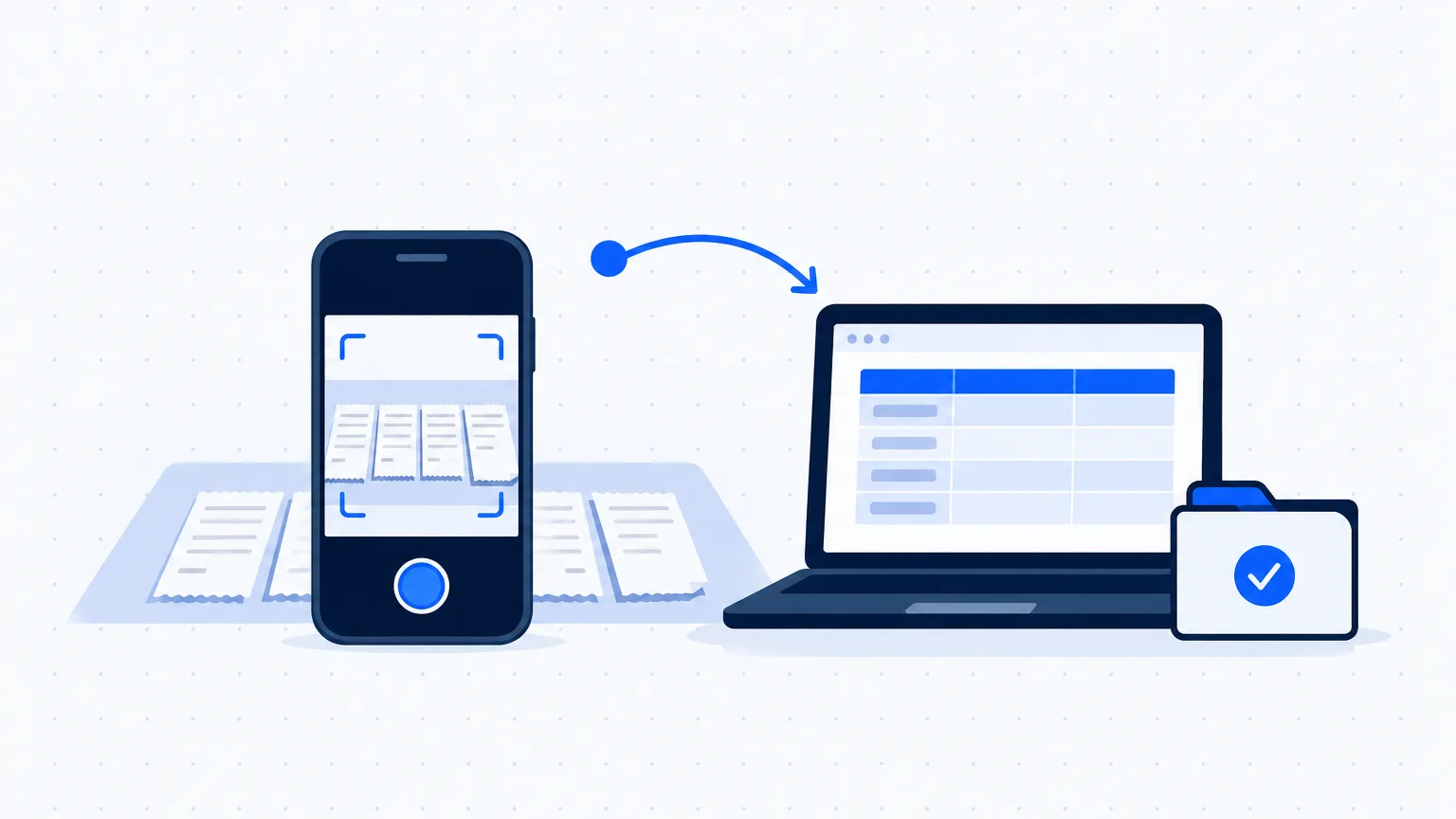
Once a day or every two days, open your AI assistant, upload that day's bill photos and use the same prompt every time. To stay within upload limits, place four to six bills side by side, without overlapping, and take one sharp photo of them together.
A prompt you can adapt:
You are helping me keep an expense sheet for my [type of business]. Read the bill photos I have uploaded. Give me a table with one row per bill and these columns: Date (DD-MM-YYYY), Supplier, Bill number, Category, Amount, GST shown (Yes/No), Paid by, Photo, Note. Use only these categories: [paste your list]. Copy the date, bill number and total amount exactly as printed, and write the amount as a plain number without commas. If anything is unclear, cut off or handwritten and hard to read, write "not clear" in that column and explain in Note. Do not guess any number. Leave Photo empty for me to fill in, and leave Paid by empty if the bill does not show it. After the table, list every bill where you were unsure.
Copy the table from the answer and paste it into your sheet under the last row. If the columns do not split, ask the assistant for the same rows separated by tabs and paste again.
Example: a sweet shop's Monday
This business is made-up. A sweet shop in Indore gets about 60 bills a month: milk, sugar and dry fruit from three suppliers, boxes, gas cylinders, electricity, and small cash spends. On Monday evening the owner puts five of the day's bills on the counter, takes one photo and uses the prompt above with these categories: Raw material, Packing material, Gas and electricity, Salaries, Transport, Repairs, Other.
The assistant returns five rows. Four are complete. The fifth, a handwritten bill from the dry fruit supplier, says "not clear" under Amount, with the note "total smudged, could be 3860 or 3680". The owner checks the paper bill, types 3680 and pastes the rows into the sheet. The whole thing takes a few minutes, and nothing waits for the end of the month.
Step 5: Check and total once a week
AI reads well, but it can misread a 6 as an 8, or take a subtotal instead of the total. Once a week, spend ten minutes on four checks:
- Filter the Note column and fix every "not clear".
- Check the amount of every bill above a limit you choose against the paper bill.
- Look for the same bill number twice, which means one bill was photographed twice.
- Make a small summary: the total of each category for the month.
You do not need to know formulas for the summary. Ask your assistant: "Write a Google Sheets formula that adds the Amount column for each category in my Categories tab", or ask it how to build a pivot table. Our guide on AI for Excel and Google Sheets shows how to ask for formulas and check them before you trust them.
Step 6: Send your accountant one clean pack each month
On the first working day of the month, send:
- the rows of last month, as a copy of the sheet;
- the category totals;
- the folder of bill photos, named by date and supplier;
- the list of cash expenses without a bill;
- a short note on anything unusual: a large purchase, a refund, a bill you are still waiting for.
Ask your accountant once what else they need, such as bank statements, and add it to this list. The paper bills stay in their box, ready if they ask.
Mistakes to avoid
- Trusting the AI's numbers without a look. A misread total goes straight into your accounts. Keep the weekly check, and always compare large bills with the paper.
- Uploading more than the bill. Do not upload bank statements with full account numbers, cheque photos or customer lists. Our guide on customer data, privacy and AI tools explains what to keep out of AI tools.
- Mixing personal and business spending. Keep personal bills out of the sheet, or mark them clearly, so that your accountant does not have to guess.
- Letting AI decide tax questions. Whether a bill counts for GST input credit, or which expense is allowed, is your accountant's call. The "GST shown" column only records what is printed.
- Throwing away the paper. The photo is your index, not a replacement.
Common questions
Can AI read a photo of a handwritten bill?
Often, if the writing is clear and the photo is sharp. Handwritten totals, smudges and folded corners are where mistakes happen, which is why the prompt asks the assistant to write "not clear" instead of guessing. Check every handwritten bill against the paper.
Is it safe to upload my bills to ChatGPT or Gemini?
A bill carries your supplier's name, GST number and amounts, and sometimes your own address and phone number. Treat it as business information: use an account with a strong password and two-step login, and read the assistant's data settings once, for example whether your chats may be used to improve its models. Keep out anything you would not hand to an outside helper, such as bank statements with full account numbers.
Can I do this on a free AI plan?
Yes, for a small number of bills. Free plans limit how many files you can upload in a day, and the limits change, so check your assistant's own help page. Photographing several bills together keeps you within the limit; if you have many bills every day, compare the paid plans before you pay.
Excel, Google Sheets or an expense app: which is better?
For a small business where one or two people handle bills, one sheet is enough and costs nothing extra. Google Sheets is easier when more than one person adds rows, or when you want to share it with your accountant. An expense or accounting app makes sense when many people spend money for the business; ask your accountant which software they use, so that your records fit into it.
Do I still need an accountant or Tally?
Yes. This sheet prepares your records; it does not keep your books, file returns or decide what is allowed. It saves your accountant time and saves you the month-end search, and that is all it should do.
Next step
This week, set up the sheet, agree the categories with your accountant and start photographing every bill on the day it arrives. Next Monday, run the prompt on your first batch. Not sure which task to hand to AI after this? The AI Business Checkup asks 10 quick questions and shows where to begin.