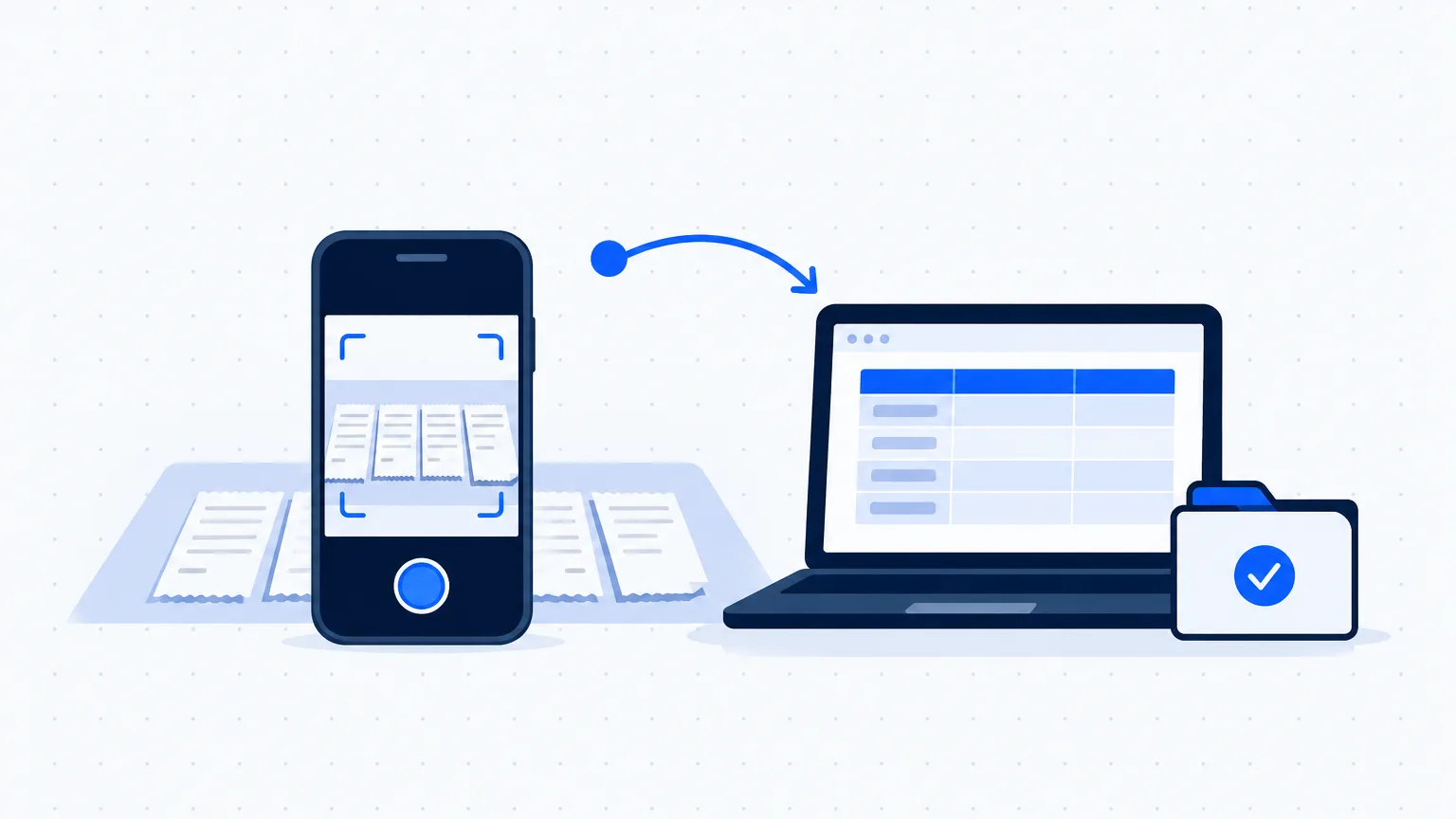
How to measure AI ROI in a small business: a simple before-and-after sheet
Pick one task, log it for two weeks before AI and two weeks with it, and use one simple sheet to see the hours saved, the money spent and the net gain.

On this page
- What you need
- Step 1: Pick one task and decide what to count
- Step 2: Set up the before-and-after sheet
- Step 3: Record two normal weeks before AI
- Step 4: Record two weeks with AI
- Step 5: Work out the answer
- Example: a made-up printing shop in Nagpur
- Step 6: Check the numbers and decide
- Mistakes to avoid
- Common questions
- Next step
Your team now uses AI for replies, quotations or reports, and you want to know whether it is worth it. This guide shows how to measure AI ROI in a small business with your own numbers, not a figure from a report about large companies. You pick one task, note it for two normal weeks before AI and two weeks with it, and compare both on one simple sheet. At the end you will know the hours saved, the money spent and any change in sales, and you can decide to keep, change or stop.
What you need
- One task where AI is already used or about to be used, for example writing quotations, replying to enquiries or making the monthly sales report.
- A spreadsheet in Google Sheets or Excel; the formulas below work in both.
- The person who does the task, for two minutes at the end of each day to note what they did.
- Your AI costs: subscription bills, any paid add-on, and the hours someone spent setting it up and learning it.
- About four weeks of normal work: two weeks before the change and two weeks after.
Step 1: Pick one task and decide what to count
Do not try to measure "AI in general". One task gives a clear answer; five tasks at once give a muddle. Write one line on what you hope will change: less time, faster replies, fewer mistakes or more orders. Then choose what to count and where the number comes from.
| Task | What to count | Where the number comes from |
|---|---|---|
| Replying to WhatsApp enquiries | Minutes per reply, replies sent the same day | A daily tally in the sheet |
| Writing quotations | Minutes per quotation, quotations sent, quotations accepted | Your quotation register or folder |
| Monthly sales report | Hours to make it, mistakes found later | The person who makes it |
| Social media posts | Minutes per post, posts per week, enquiries that mention a post | Your posting record and enquiry register |
| Payment reminders | Reminders sent, payments received by the due date | Your billing or accounts software |
Count time and results. Time alone misses the point if replies get faster but customers stop buying.
Step 2: Set up the before-and-after sheet
Make one tab called Log with these columns: Date, Task, Before or after AI, Number done, Minutes spent, Minutes checking AI work, Result, Notes. Make a second tab called Costs with: Item, Monthly cost, Setup hours. You can build it yourself in ten minutes, or let an AI assistant draft it.
A prompt you can adapt:
I run a [type of business] in [city] with [number] staff. I want to measure whether AI helps with one task: [task]. Make a simple table for [Google Sheets or Excel] with these columns: Date, Task, Before or after AI, Number done, Minutes spent, Minutes checking AI work, Result, Notes. Add a second table called Costs with these columns: Item, Monthly cost, Setup hours. Then give me formulas for: minutes per task before and after AI, minutes saved in a month if the task is done [number] times a month, and the value of that time at [hourly cost] rupees an hour. Use only the columns I listed. Do not add any figures of your own; leave every number cell empty.
Two formulas do most of the work, and they behave the same in Google Sheets and Excel. SUMIF adds up only the rows that match a word, so =SUMIF(C:C, "Before", E:E) gives the total minutes for the "Before" rows if column C holds "Before" or "After" and column E holds the minutes. SUM adds a whole column, for example the monthly costs.
Keep customer names and phone numbers out of this sheet; it needs only counts, minutes and, for sales you can trace, the order value. If you later paste it into an AI tool, remove anything personal first. See customer data and AI tools for what never goes in.
Step 3: Record two normal weeks before AI
Each day, the person doing the task notes how many they did and roughly how many minutes it took. Rough is fine; honest and consistent matters more. If the team already uses AI for this task, ask them to do it the old way for one week, or use your records from last month, such as the quotation register, with the person's honest estimate of the minutes each one took.
Choose ordinary weeks. A festival rush, a staff member on leave or a slow season on one side only will make the comparison mislead you. Write anything unusual in the Notes column.
Step 4: Record two weeks with AI
Same task, same way of counting, now with AI. Note the minutes spent writing the prompt and editing the draft in Minutes spent, and the minutes spent reading, checking and correcting it in Minutes checking AI work. This column is the one most owners forget, and it decides whether AI really saves time.
Put one-time work in the Costs tab as Setup hours: learning the tool, writing your first prompts, building a reply library. Put subscriptions there as Monthly cost, even if the bill is small or the tool is free.
Step 5: Work out the answer
Use these steps in order. The AI assistant can write the formulas, but you should understand each line.
| What | How to work it out |
|---|---|
| Minutes per task before | Total minutes before, divided by the number done before |
| Minutes per task with AI | Minutes spent plus minutes checking, divided by the number done with AI |
| Hours saved in a month | Minutes saved per task, times the number done in a month, divided by 60 |
| Hourly cost of the person | Their monthly salary divided by the hours they work in a month |
| Value of time saved | Hours saved in a month, times the hourly cost |
| Net gain in a month | Value of time saved, plus profit on extra sales you can trace, minus monthly AI costs |
| Setup cost, one time | Setup hours, times the hourly cost; divide it by the net gain to see in how many months it is covered |
For one simple figure, divide the net gain by the monthly AI cost: that is how many rupees come back for each rupee spent, on top of the rupee itself. For extra sales, count only what you can trace to the change, such as quotations sent the same day that were accepted, and use the profit on those sales, not the full bill amount.
This is general information for your own decisions, not accounting or tax advice. For how AI subscriptions are shown in your accounts or treated for GST, ask your accountant.
Example: a made-up printing shop in Nagpur
This is a made-up example: a printing and signage shop in Nagpur with eight staff starts using an AI assistant to draft quotations. All figures are invented to show the method.
Before AI, over two weeks, the shop sent 20 quotations at about 25 minutes each. With AI, over the next two weeks, it sent 22 quotations: about 10 minutes to give the details and edit the draft, and 5 minutes to check prices and delivery dates. So each quotation now takes 15 minutes instead of 25, and most now go out the same day instead of the next day.
The shop sends about 44 quotations a month, so it saves about 440 minutes, or about seven hours. The person who writes quotations earns ₹25,000 a month for about 200 working hours, which is ₹125 an hour. Seven hours are worth about ₹875 a month. The shop pays ₹500 a month for its AI subscription, so the net gain from time alone is about ₹375 a month: for each rupee spent, about 75 paise come back on top of it. Setting up its prompts took about four hours, a one-time cost of ₹500 at the same hourly rate, which the time saved covers in under two months.
Accepted quotations went from 9 to 10. The owner writes in Notes that one extra order is too small a change to credit to AI, and keeps watching. The decision: keep the tool, because the time saved is worth more than the bill and quotations now go out the same day.
Step 6: Check the numbers and decide
Before you decide, one person goes through the sheet with these questions:
- Were the before and after weeks comparable, with the same staff and normal demand?
- Did anyone skip logging the checking time on busy days?
- Did an AI mistake cost money, such as a wrong price, a wrong date or a promise you cannot keep? Add the time spent fixing it.
- Did the change in sales have another reason, such as a festival, a new product or a price change?
Then decide one of three things: keep it as it is, change it (a better prompt, a different tool or another task), or stop. Measure again every three months, or when the bill goes up.
If you want help reading the result, give the totals to an AI assistant.
A prompt you can adapt:
Here are my before and after totals for one task: [paste the totals, without names or customer details]. Explain in simple words what changed, what the net gain in a month is, and what I should check before deciding. Keep every number exactly as I wrote it. Do not add anything that is not in my text.
Mistakes to avoid
- Measuring everything at once. Five tasks and no clear answer. Measure one task per sheet, then the next.
- Leaving out checking time. AI drafts quickly, but reading and fixing takes time. Keep it in its own column.
- Comparing a busy week with a slow one. Festival weeks or a staff member on leave on one side only make the result mislead. Use ordinary weeks and write down anything unusual.
- Giving AI credit for every extra sale. Count only the sales you can trace to the change, and use the profit, not the bill amount.
Common questions
What does AI ROI mean for a small business?
It means what you get back from AI compared with what you put in. For a small business the return is usually hours saved, faster replies or orders you can trace, and the cost is subscriptions plus staff time. Measure it with your own numbers, one task at a time.
How do I calculate AI ROI in Excel or Google Sheets?
Log the task before and after in one sheet, then work out minutes per task, hours saved in a month, the value of those hours and the net gain after costs. The Step 2 prompt gives you the columns and formulas, and SUMIF works the same in both tools.
Does AI really save time if I have to check everything?
Sometimes it does not, and the sheet will show you. That is why checking time has its own column. If drafting plus checking takes as long as doing it yourself, change the prompt or try AI on a different task.
How long should I measure before deciding?
Two normal weeks before and two weeks with AI is enough for a task done every day. For a monthly task such as a sales report, compare two or three months. Keep festival weeks and slow seasons out, or have them on both sides.
If the AI tool is free, is there still a cost?
Yes. Someone spends hours setting it up, learning it and checking its work, and that time is paid. Put those hours in the Costs tab, and compare them with the time saved.
Next step
This week, choose one task, make the sheet with the Step 2 prompt, and start the "before" log tomorrow. For more help with formulas and reports, see AI for Excel and Google Sheets reports. If you are not sure which task to start with, take the free AI Business Checkup.