Your first automation: a form, a sheet and an automatic message, without code
Automation sounds technical, but a first one takes an afternoon. Connect an enquiry form to a sheet and an instant acknowledgement, then add AI where it helps.
On this page
- What a good first automation looks like
- Step 1: Draw it on paper
- Step 2: Build the form and the sheet
- Step 3: Add the notifications
- Step 4: Write the acknowledgement with AI
- A note on WhatsApp
- Step 5: Test it yourself
- Step 6: Add AI where it helps
- Example
- Five more automations to consider later
- Keep it under control
- Mistakes to avoid
Automation means that a routine step happens by itself, every time, without anyone remembering to do it. You do not need a programmer for a first one. You need a clear rule and one of the many tools that connect apps without code.
What a good first automation looks like
- It happens often.
- The rule never changes: "when X happens, do Y".
- A mistake would be small and easy to notice.
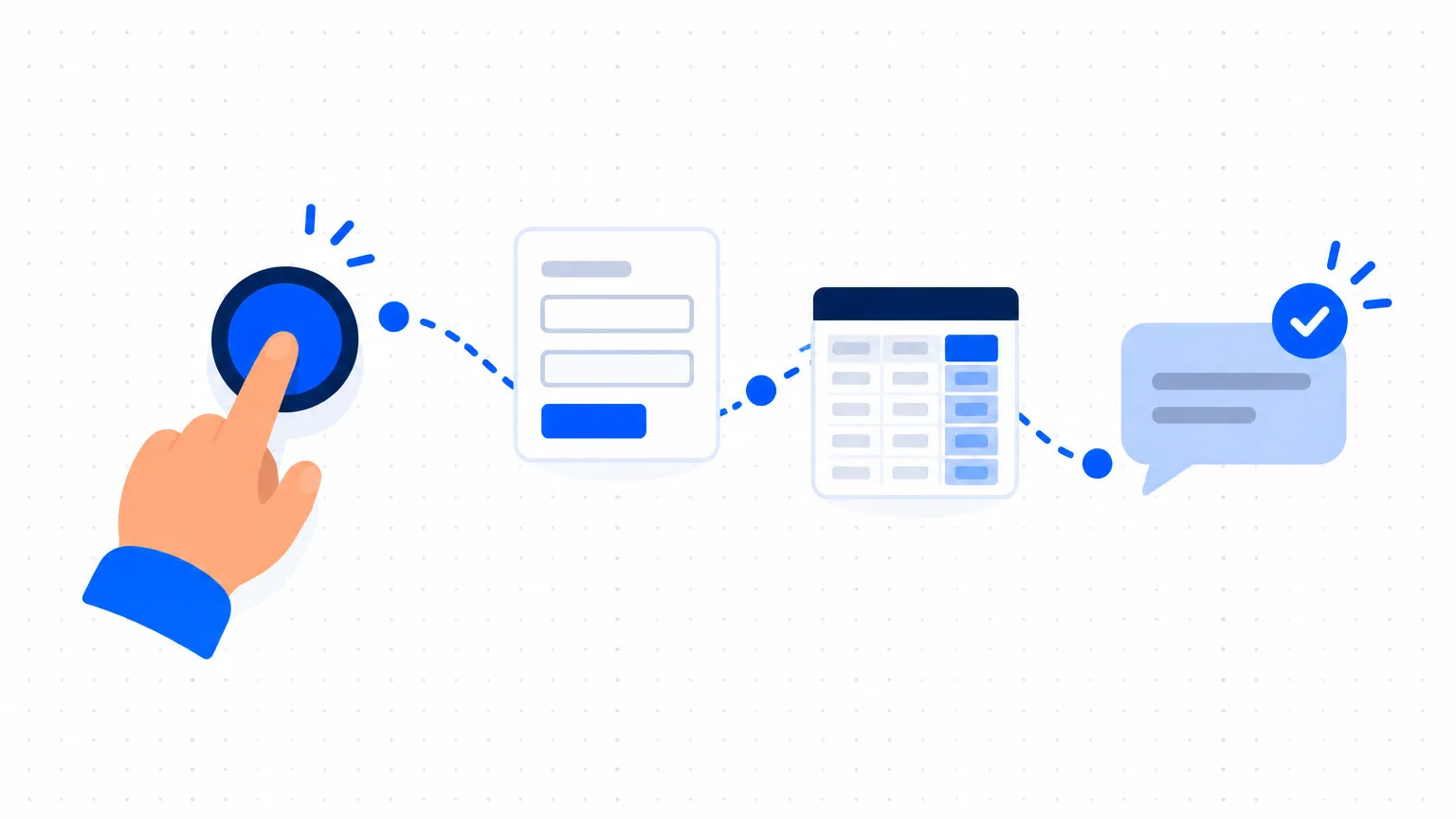
The classic first automation for a small business: when someone fills in the enquiry form, save the enquiry in a sheet, email the team, and send the customer an acknowledgement.
It replaces three things people forget on busy days.
Step 1: Draw it on paper
Write the rule as a chain:
- Trigger: a customer submits the enquiry form.
- Action: add a row to the "Enquiries" sheet.
- Action: send an email or message to the sales person.
- Action: send the customer an acknowledgement with what happens next.
If you cannot write it this simply, it is not ready to automate.
Step 2: Build the form and the sheet
Use a form tool that writes into a spreadsheet. Google Forms with Google Sheets is free and enough to start. Ask the five questions from Qualify enquiries faster, and add a consent line: "I agree to be contacted about my enquiry."
Put the form link on your website, your Google profile, your Instagram bio and your WhatsApp Business quick reply.
Step 3: Add the notifications
Most form tools can email you on every new response. That is your first automation, done in two minutes.
For the customer's acknowledgement and anything further, use a connector tool. These are services that link apps together with "when this, then that" rules. Well-known examples are Zapier, Make and Pabbly Connect. Many business apps you already use, such as CRMs and accounting tools, have simple automation built in. Check what your existing tools can do before paying for a new one.
Step 4: Write the acknowledgement with AI
Write a short acknowledgement message for a customer who has just filled in the enquiry form of a [type of business]. Thank them, tell them when and how we will reply ([your real reply time]), and give our phone number for urgent needs. Under 50 words, warm, simple English. No promises about price or availability.
Only promise a reply time you actually keep.
A note on WhatsApp
Sending automatic WhatsApp messages from a business needs the WhatsApp Business Platform, which is set up through Meta or one of its approved providers. Messages you start usually have to use approved templates, and the customer must have agreed to receive them. The free WhatsApp Business app offers simpler tools you can use today: a greeting message, an away message and quick replies. Start there.
Step 5: Test it yourself
Fill in the form three times as a customer: once normally, once with a missing field, once with a long message. Check that the row, the team alert and the acknowledgement all arrive, and read the acknowledgement on a phone.
Step 6: Add AI where it helps
Once the basic chain works, AI can add a useful step:
- Summarise and sort: each new enquiry gets a two-line summary and a suggested group in the next column of the sheet.
- Draft, not send: a suggested first reply is placed in the sheet for a person to read, edit and send.
Keep the rule from Simple AI rules for your team: AI drafts, a person sends. If an automation passes customer details to an AI service, check that service's data terms first.
Example
A made-up home tuition service, used only to show the chain.
Parents fill in a form: class, subject, area, preferred time. The row lands in a sheet. The coordinator gets an email. The parent gets a message: "Thank you. We will call you today before 7 pm with a tutor's details." Every evening the coordinator opens the sheet, calls the new enquiries and marks the status. Nothing clever, and no enquiry is lost.
Five more automations to consider later
- A reminder the day before an appointment.
- A thank-you and review request after a job is completed.
- A payment reminder on the due date, after a person has checked the list.
- A weekly email of the sales summary to the owner.
- A birthday or renewal reminder for the team to act on.
Keep it under control
- One owner. One person knows how each automation works and where it lives.
- A list. A sheet with every automation: what triggers it, what it does, which accounts it uses.
- A weekly check. Look at the last few runs. Automations fail silently when a form changes or a password expires.
- An off switch. Know how to pause each one.
Mistakes to avoid
- Automating a messy process. Fix the steps first.
- Automatic replies that pretend to be a person. Say it is an acknowledgement.
- Messages without consent.
- Ten automations in the first month. Build one, run it for two weeks, then the next.