Appointment reminder message and booking for small business, without code
Bookings on WhatsApp, a diary and a morning of confirmation calls. Set up one form, one sheet and four AI-written messages so every customer gets a confirmation and a reminder.
On this page
- What you need
- Step 1: Decide what one booking needs
- Step 2: Build the booking form
- Step 3: Link the form to a sheet
- Step 4: Confirm the slot and block it in your calendar
- Step 5: Write the four messages with AI
- Step 6: Turn the reminder into one tap
- Example: a made-up salon in Pune
- Step 7: Test with your own number, then let a person check
- Step 8: Run the ten-minute routine
- Mistakes to avoid
- Common questions
- Next step
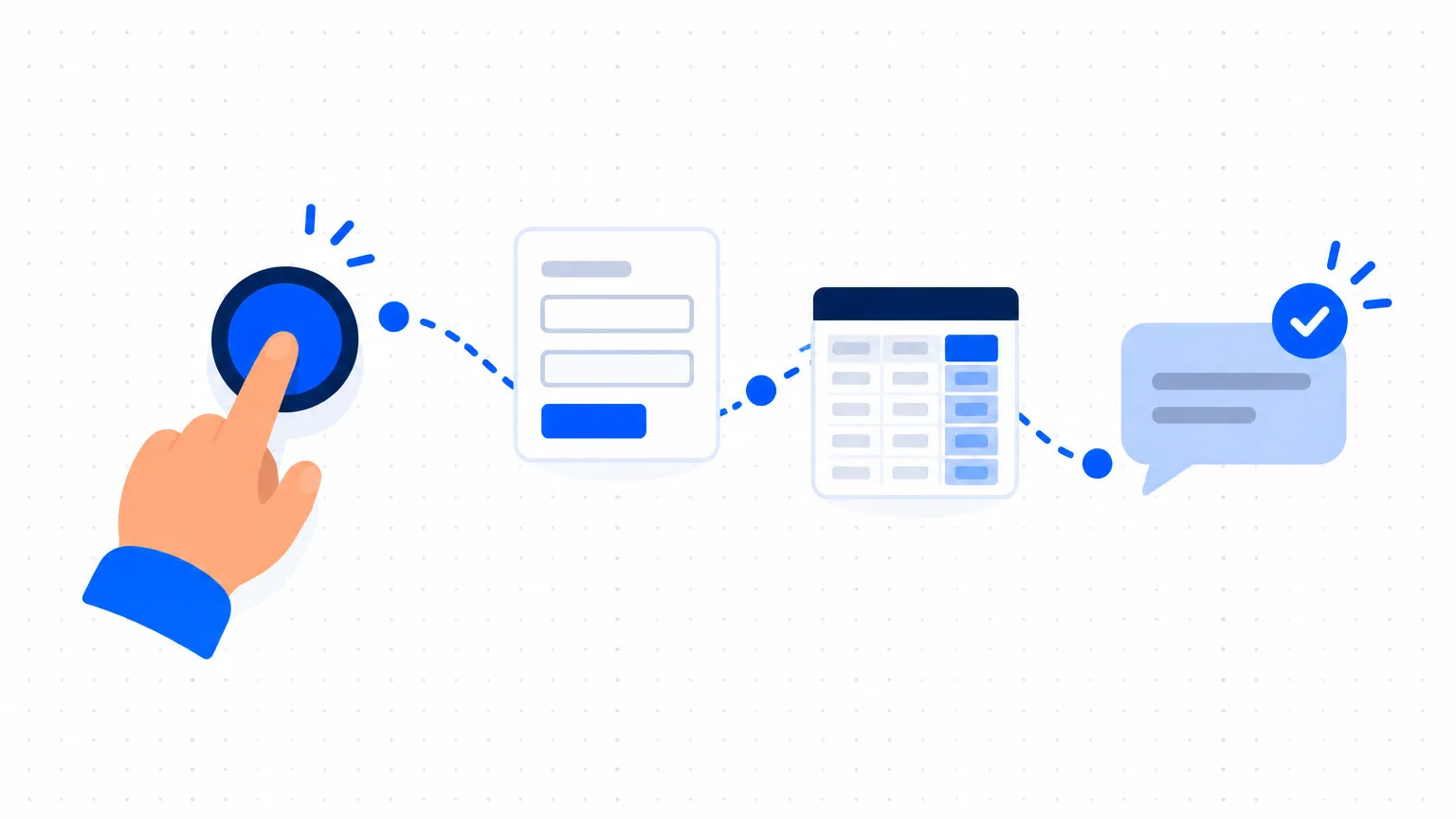
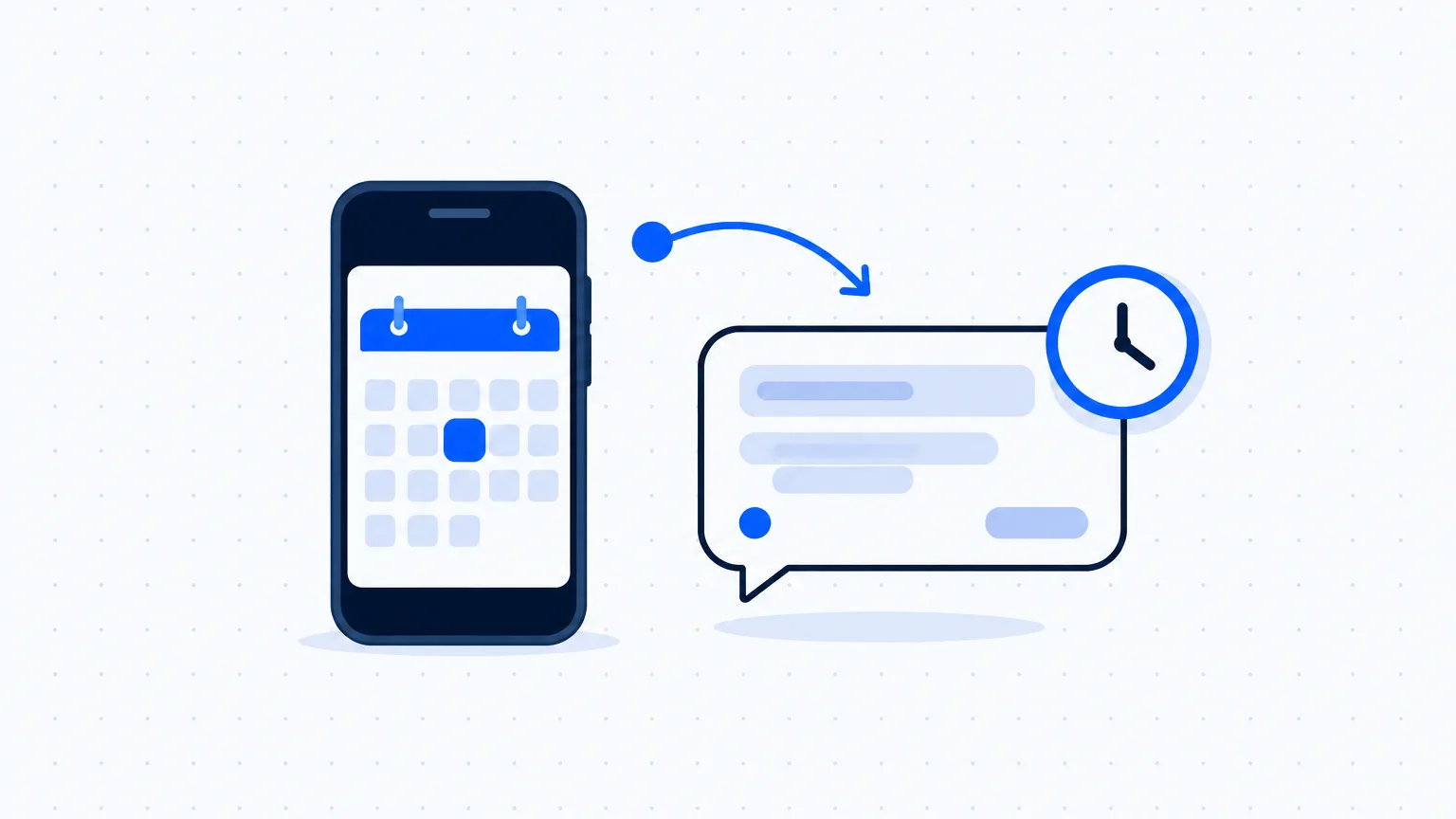
Customers book on WhatsApp, you note the slot in a diary, and then half your morning goes in calling people to check they are still coming. This guide shows how to set up an appointment reminder message routine without any code: a booking form, one sheet, your calendar and four short messages written with AI. At the end, every booking lands in one place and every customer gets a confirmation and a reminder before the visit.
What you need
- A Google account, for Google Forms, Google Sheets and Google Calendar, and any AI assistant you already use, only to write the wording.
- WhatsApp on the business phone, and a laptop for the one-time setup.
- One person who owns the routine: an afternoon for setup, then ten minutes at a fixed time each day.
- One data rule: the AI writes the wording, and real names and phone numbers stay in your sheet. If you are unsure what is safe to paste, read customer data and AI tools.
Step 1: Decide what one booking needs
List the facts you need to hold a slot: name, mobile number, service, preferred date, preferred time and an optional note. Six questions are enough; every extra question loses some customers. Also decide your working days and how long each service takes.
Step 2: Build the booking form
In Google Forms, add one question for each fact, using the Date and Time question types for the slot. For the mobile number, use a short answer question with a rule: choose Regular expression, then Matches, and type the pattern [0-9]{10}. Google's own help page gives this exact rule for a 10-digit phone number. Add an error text such as "Please type your 10-digit mobile number without +91 or spaces."
In the form description, write one line: "We will confirm your slot on WhatsApp and send a reminder the day before." Then share the form link where customers already find you: your WhatsApp Business profile, Google Business Profile, Instagram bio, or a QR code at the counter.
Step 3: Link the form to a sheet
In the form's Responses tab, open the More menu, choose Select destination for responses and create a new spreadsheet. Every booking becomes a new row. Add your own columns to the right:
| Column | What it holds | Who fills it |
|---|---|---|
| A to G | Booking time, name, mobile, service, date, time, note | The form |
| H Status | Pending, Confirmed, Changed, Cancelled, Done | You |
| I Message | The reminder text, built from the row | Formula (Step 6) |
| J Send | A link that opens WhatsApp with the message ready | Formula (Step 6) |
| K Sent | Yes, once the reminder has gone | You |
Make column H a dropdown list, so nobody types "ok" in one row and "confirmed" in another. The rule for your team: a form entry is a request, not a booking, until Status says Confirmed.
Step 4: Confirm the slot and block it in your calendar
Each day, open the new Pending rows and check the date and time in your calendar. If the slot is free, add an event such as "Neha, haircut" with the phone number in the notes, and set Status to Confirmed. If it is taken, send two other slots and leave the row Pending. The calendar is where double booking gets caught, so never skip it. Google Calendar also has its own booking page feature, called appointment schedules; read Google's page to see what your account includes before choosing between that and a form.
Step 5: Write the four messages with AI
You need four: a confirmation once you confirm the slot, a reminder the evening before, a reply when someone wants to move the slot, and a kind message after a missed visit. A prompt you can adapt:
I run [type of business] in [city]. Write four short WhatsApp messages for customers who have booked an appointment, in [English or Hinglish]. Under 40 words each, polite, no emojis.
- Confirmation with the date, time and our address.
- Reminder for the evening before, asking them to reply YES.
- Reply when they ask to change the time.
- Message after a missed appointment that does not blame them.
Write the words NAME, SERVICE, DATE and TIME in capitals where each customer's details will go. Our address: [address]. Our change rule: [for example, please tell us by 6 pm the day before].
Do not add any offer, price, discount or promise that is not in my text. Keep every detail exactly as I wrote it.
Step 6: Turn the reminder into one tap
Now let the sheet build each message from its row. WhatsApp's click to chat feature opens a chat from a link: https://wa.me/ then the full number in international format, then ?text= and the message. Google Sheets has a function, ENCODEURL, that prepares message text for such a link. You need not write the formulas yourself. Ask your AI assistant:
My Google Sheet has these columns: A booking time, B name, C mobile number (10 digits), D service, E date, F time, G note, H status.
Write a formula for column I that builds this message from the same row, with the name, service, date and time in the right places: [paste your approved reminder].
Write a second formula for column J that makes a WhatsApp click to chat link for the number in column C, with country code 91, and the text from column I as the ready message.
Explain each formula in one line.
Do this once on a laptop. WhatsApp says click to chat works on both the phone and WhatsApp Web, so the daily tap can happen anywhere.
Example: a made-up salon in Pune
Studio Nine is a made-up salon in Pune with three chairs and one receptionist. Neha books a haircut for 27 October at 11:30 AM through the form. The receptionist checks the calendar and sets Status to Confirmed. Row 2 holds two formulas, the same shape as the ones an AI assistant gives:
="Hello "&B2&", a reminder of your "&D2&" appointment at Studio Nine on "&TEXT(E2,"d MMM")&" at "&TEXT(F2,"h:mm AM/PM")&". Please reply YES to confirm, or tell us if you need to change the time."
=HYPERLINK("https://wa.me/91"&C2&"?text="&ENCODEURL(I2),"Send")
On the evening of 26 October, the receptionist taps Send. WhatsApp opens Neha's chat with this message ready:
"Hello Neha, a reminder of your haircut appointment at Studio Nine on 27 Oct at 11:30 AM. Please reply YES to confirm, or tell us if you need to change the time."
She presses send and writes Yes in column K. Because the form accepts only 10 digits, the link never breaks on a number typed with spaces or +91.
Step 7: Test with your own number, then let a person check
Add a test row with your own name and number, set Status to Confirmed and tap Send. Check that the day and month are not swapped, the time is right, and WhatsApp opens with the message ready. Then ask a second person to read all four messages as a customer would. Look for a wrong business name, a rule you do not follow, and anything that sounds like a promise, such as a free slot or a refund. Delete the test row.
Step 8: Run the ten-minute routine
Pick one time every day, for example 5 pm. First, handle new Pending rows (Step 4) and send each confirmation. Second, for every Confirmed row with tomorrow's date, tap Send, press send in WhatsApp and write Yes in column K. Third, next morning, call anyone who did not reply YES. If someone cancels, set Cancelled so you can offer the slot to the next customer.
Mistakes to avoid
- Treating every form entry as a booking. Two customers can ask for the same slot. Check the calendar before you confirm.
- Putting private details in the message. A reminder needs a name, a plain service name, date, time and address. A clinic or counselling room should not put the reason for the visit in the form or message; write "appointment".
- Reminding at a random time. A reminder on the morning of the visit is too late to rearrange the day. Fix one time and one person.
- Skipping the test. A swapped day and month, or a space in a phone number, sends the wrong message to a real customer.
Common questions
What should an appointment reminder message say?
The customer's name, the service, the date, the time, your address, and an easy way to confirm or change, such as "reply YES". Keep it short and leave out offers.
Can WhatsApp reminders be sent fully automatically?
Not with this setup: the sheet prepares each message and a person taps send. Fully automatic sending by software is a different setup, with its own rules from WhatsApp and the tool's provider, and costs that change. Run this routine for a few weeks first, then compare tools if the volume asks for it.
Do I need a website or paid booking software?
No. A form link works from WhatsApp, Instagram, your Google Business Profile or a printed QR code. Booking software starts to make sense when many staff and services need separate calendars.
Will customers mind getting a reminder?
They booked the slot themselves, so a short, polite reminder reads as part of your service. It stops being welcome when it carries offers, arrives at night, or comes from a number they do not know. Stop messaging anyone who asks you to.
How do I reduce customers who do not turn up?
A reminder the evening before, a simple way to change the slot, and a call to anyone who did not reply YES all help. No routine brings missed visits to zero, and whether to ask for an advance payment is your decision.
Next step
This week, build the form (Steps 1 and 2) and write your four messages (Step 5), then test with your own number before any customer sees the link. For the replies customers send back, see the WhatsApp reply library. To find which task in your business to improve next, take the AI Business Checkup.